
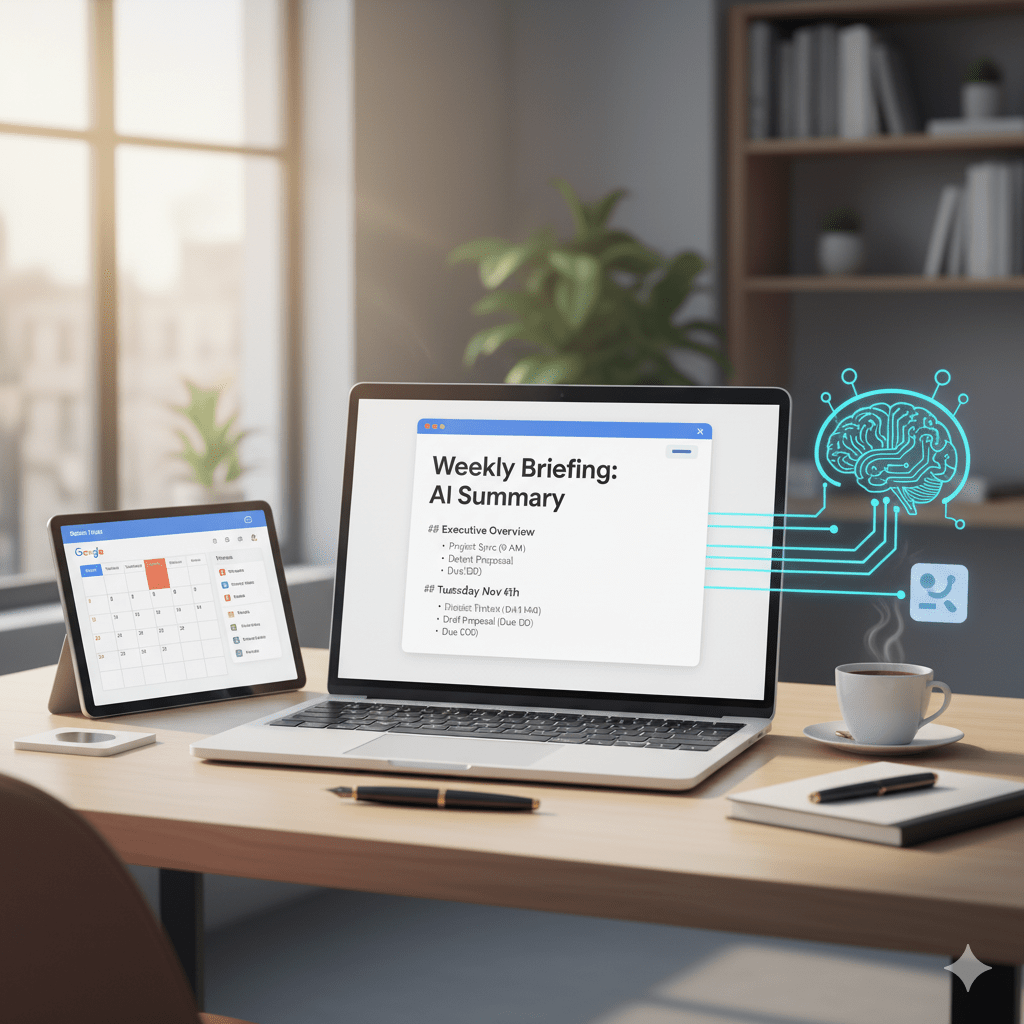
Starting your week organized often requires sifting through multiple calendars and task lists. You can automate this entire process using Google Apps Script and Gemini AI, creating a tool that delivers a concise, intelligent executive summary of your upcoming week directly to your inbox every Sunday morning.
This guide provides the complete script and step-by-step instructions to set this up. No advanced coding knowledge is required—if you can copy and paste, you can build this tool.
Is This Really Free? (Understanding the Costs)
Before we build, let’s address the most common question: Does this cost money?
For personal use, no. We are utilizing the “Free Tier” of Google AI Studio. It is incredibly generous for individual projects like this.
AI costs are usually measured in “tokens” (think of a token as a small piece of a word).
- The Free Tier Limit: As of this writing, Google allows you to process roughly 1 million tokens per minute and make 1,500 requests per day for free.
- Your Usage: Even a very busy weekly calendar will only use about 2,000 to 3,000 tokens in total. This script runs only once per week.
In short, you are using less than 0.01% of your free weekly allotment. You won’t accidentally receive a bill for running this personal automation.
What This Tool Does
Once implemented, this script will:
- Scan your designated Google Calendars and Google Tasks every Sunday morning.
- Analyze your schedule using Gemini AI to identify priorities, deadlines, and busy periods.
- Filter events to distinguish between your personal commitments and calendars you merely monitor (e.g., distinguishing between “You have a meeting” vs. “Leo has a meeting”).
- Deliver a formatted email summary ready for review.
What This Tool Delivers
Every Sunday morning, you’ll receive a clean, actionable email like this:
Weekly Briefing High-Level Overview: 3 critical deadlines, 2 team syncs, 1 personal commitment. Light load on Wednesday.
Monday, Nov 10
- [Work] Q4 Planning Sync (10:00 AM)
- [Task] Submit budget proposal (Due: Mon, Nov 10)
Tuesday, Nov 11
- [Family] Leo dentist appointment (2:30 PM) (Created by: spouse@gmail.com)
AI distinguishes your events from ones you just monitor.
Prerequisites
You need a Gemini API Key. This is a secure code that allows your private script to talk to Google’s AI.
- Navigate to Google AI Studio and sign in with your Google account.
- Select Create API key.
- Copy the generated key and store it temporarily; you will need it in Step 3.
Step 1: Create the Script Project
We will use Google Apps Script, Google’s cloud-based JavaScript platform that integrates seamlessly with Workspace apps.
- Go to script.google.com and click New Project.
- Name the project (e.g., “Weekly AI Scheduler”).
- In the left sidebar, look for Services and click the + icon next to it.
- Find and select Google Calendar API, then click Add.
- Repeat the process to add Google Tasks API.
Ensure both services appear under the “Services” label in the left sidebar before proceeding.
Step 2: Implement the Code
In the main editor window, delete any default code (like function myFunction() {}) so the file is completely empty. Then, paste the following entire script:
JavaScript
// --- START OF CODE ---

// -----------------------------------------------------------------
// 1. CONFIGURATION
// -----------------------------------------------------------------
const API_KEY = "PASTE_YOUR_API_KEY_HERE"; // Your Gemini API Key
// Add the exact names of the calendars you want to scan below.
const CALENDAR_NAMES_TO_READ = ["your.email@company.com", "Project Calendar"];
const TIMEZONE = Session.getScriptTimeZone();
const EMAIL_SUBJECT = "Weekly Briefing: AI Summary";
const AI_MODEL = "gemini-2.5-flash"; // Stable, efficient model for summarization

/**
 * Primary function executed by the weekly trigger.
 */
function runWeeklySummary() {
  try {
    const userEmail = Session.getActiveUser().getEmail();
    if (!userEmail) return;

    const eventsString = getUpcomingWeekEvents(userEmail);
    const tasksString = getUpcomingWeekTasks();

    if (eventsString.includes("No upcoming events") && tasksString.includes("No upcoming Tasks")) {
      Logger.log("Schedule clear. No summary needed.");
      return;
    }

    const combinedData = eventsString + "\n\n" + tasksString;
    const summary = generateAISummary(combinedData, userEmail);
    sendSummaryEmail(userEmail, summary);

  } catch (e) {
    Logger.log("Error in runWeeklySummary: " + e.toString());
    MailApp.sendEmail(Session.getActiveUser().getEmail(), "Weekly Script Error", e.toString());
  }
}

/**
 * Aggregates events from all specified calendars.
 */
function getUpcomingWeekEvents(userEmail) {
  const today = new Date();
  const nextWeek = new Date();
  nextWeek.setDate(today.getDate() + 7);
  let allEvents = [];

  CALENDAR_NAMES_TO_READ.forEach(calName => {
    const calendars = CalendarApp.getCalendarsByName(calName);
    calendars.forEach(cal => {
      allEvents = allEvents.concat(cal.getEvents(today, nextWeek).map(event => ({
        event: event,
        calendarName: cal.getName()
      })));
    });
  });

  if (allEvents.length === 0) return "No upcoming events found.";

  allEvents.sort((a, b) => a.event.getStartTime() - b.event.getStartTime());

  let eventList = "Upcoming Calendar Events:\n\n";
  const userLower = userEmail.toLowerCase();

  allEvents.forEach(item => {
    const { event, calendarName } = item;
    const start = Utilities.formatDate(event.getStartTime(), TIMEZONE, "EEE, MMM d 'at' h:mm a");
    let details = `- [${calendarName}] ${event.getTitle()} (${start})`;

    const creators = event.getCreators();
    if (creators.length > 0 && creators[0].toLowerCase() !== userLower) {
      details += ` (Created by: ${creators[0]})`;
    }
    eventList += details + "\n";
  });

  return eventList;
}

/**
 * Aggregates tasks due in the next 7 days.
 */
function getUpcomingWeekTasks() {
  try {
    const taskLists = Tasks.Tasklists.list().items;
    if (!taskLists) return "No task lists found.";

    const today = new Date();
    today.setHours(0,0,0,0);
    const nextWeek = new Date();
    nextWeek.setDate(today.getDate() + 7);

    let taskOutput = "Upcoming Tasks:\n\n";
    let hasTasks = false;

    taskLists.forEach(list => {
      const tasks = Tasks.Tasks.list(list.id, { showCompleted: false }).items;
      if (tasks) {
        tasks.filter(t => t.due).forEach(task => {
          const dueDate = new Date(task.due);
          dueDate.setHours(0,0,0,0);
          if (dueDate >= today && dueDate <= nextWeek) {
             taskOutput += `- [Task] ${task.title} (Due: ${Utilities.formatDate(dueDate, TIMEZONE, "EEE, MMM d")})\n`;
             hasTasks = true;
          }
        });
      }
    });

    return hasTasks ? taskOutput : "No upcoming Tasks found.";
  } catch (e) {
    return "Error fetching tasks. Ensure Tasks API is enabled.";
  }
}

/**
 * Sends data to Gemini API for summarization.
 */
function generateAISummary(data, userEmail) {
  const url = `https://generativelanguage.googleapis.com/v1beta/models/${AI_MODEL}:generateContent?key=${API_KEY}`;
  const prompt = `
    Summarize the following schedule for ${userEmail} for the upcoming week.
    Data sources:
    - [Calendar Name]: Events from specific calendars.
    - [Task]: To-do items with due dates.
    - (Created by: email): Events owned by others; phrase these as that person's activity, not the user's.

    Provide a high-level executive overview first. Then group by day (e.g., ### Monday, November 3rd).
    Keep the tone professional and actionable.

    Schedule Data:
    ${data}`;

  const options = {
    'method': 'post',
    'contentType': 'application/json',
    'payload': JSON.stringify({
      contents: [{ parts: [{ text: prompt }] }],
      generationConfig: { temperature: 0.5, maxOutputTokens: 8192 }
    }),
    'muteHttpExceptions': true
  };

  const response = UrlFetchApp.fetch(url, options);
  const json = JSON.parse(response.getContentText());

  if (json.candidates && json.candidates[0].content.parts[0].text) {
    return json.candidates[0].content.parts[0].text;
  } else {
    throw new Error("Gemini API failure: " + response.getContentText());
  }
}

/**
 * Formats Markdown to HTML and sends the email.
 */
function sendSummaryEmail(to, markdownSummary) {
  let html = markdownSummary
    .replace(/^### (.*?)$/gm, '<h3 style="margin-top:15px;font-weight:600;">$1</h3>')
    .replace(/\*\*(.*?)\*\*/g, '<strong>$1</strong>')
    .replace(/^\* (.*?)$/gm, '<li style="margin-left:20px;">$1</li>')
    .replace(/\n/g, '<br>');

  GmailApp.sendEmail(to, EMAIL_SUBJECT, "", {
    htmlBody: `<div style="font-family:sans-serif;line-height:1.5;color:#333;">
                 <h2>Weekly Briefing</h2>
                 <div style="background:#f9f9f9;padding:20px;border-left:4px solid #4285f4;">${html}</div>
               </div>`
  });
}

/**
 * One-time setup for the weekly automation trigger.
 */
function setupWeeklyTrigger() {
  const triggers = ScriptApp.getProjectTriggers();
  triggers.forEach(t => ScriptApp.deleteTrigger(t));

  ScriptApp.newTrigger("runWeeklySummary")
    .timeBased().onWeekDay(ScriptApp.WeekDay.SUNDAY).atHour(8).create();
  Logger.log("Weekly Sunday trigger active.");
}

/**
 * Utility to list exact calendar names for configuration.
 */
function logAllCalendarNames() {
  CalendarApp.getAllCalendars().forEach(c => Logger.log(c.getName()));
}
// --- END OF CODE ---
Step 3: Configuration
Update the configuration section at the very top of the script to match your environment:
API_KEY: Paste the Gemini API key you created in the Prerequisites section inside the quotation marks.CALENDAR_NAMES_TO_READ: Enter the exact names of the calendars you wish to monitor.- Note: Your primary calendar is usually named exactly the same as your email address.
- To find your exact names if you are unsure: Select
logAllCalendarNamesfrom the function dropdown menu, click Run, and view the logs (View > Logs).
Step 4: Authorization and Automation
To set the script to run automatically:
- Select the
setupWeeklyTriggerfunction from the top dropdown menu. - Click Run.
- Google will prompt you for authorization. Because this is a custom script you wrote yourself, Google will show a warning. You will need to click Advanced and then Go to [Your Project Name] to proceed.
Once authorized, your briefing is scheduled for every Sunday at 8:00 AM.
To test the output immediately without waiting for Sunday, manually select and run the runWeeklySummary function.
Final Thoughts
By investing just fifteen minutes today, you’ve automated one of the most tedious aspects of weekly planning. You no longer need to spend your Sunday evening clicking through multiple calendar tabs to understand what’s ahead.
Instead, you can rely on this tool to do the heavy lifting, ensuring you start every Monday morning informed, organized, and ready to execute. Enjoy your new AI executive assistant.

 L&L Engineering
Leave a comment